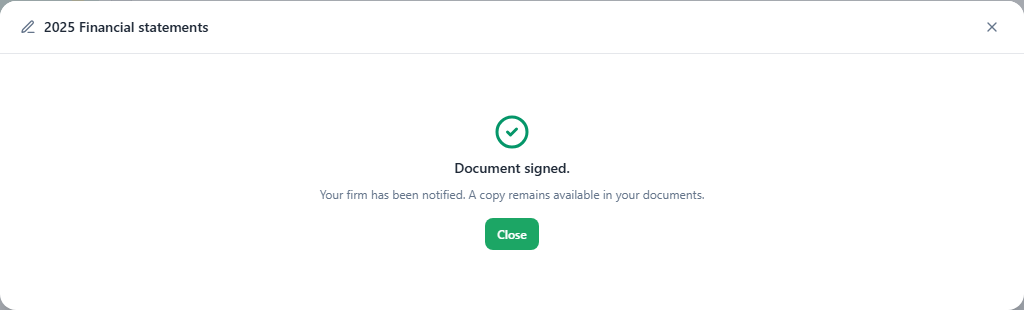
Get a document signed
Deposit a PDF, place the zones exactly where your client must sign, and follow the signature to the end. Your client signs in a few clicks, on a computer or a phone, and you keep a signed copy that nobody can change.
Prepare the document
Deposit the PDF
On the client's portal page, Documents section, click Deposit a document. Pick the PDF file and check the Title shown to the client, the Type and the Fiscal year, then choose With signature. The document preview shows on the right, page by page, with zoom.
For financial statements, start from their print preview: Send to portal opens this deposit with the statements already loaded (see Documents and document requests).
Place the signature zones
In New zone for, pick who signs. Then drag Add a Signature zone, Add an Initials zone or Add a Date zone onto the page, at the exact spot (a simple click drops the zone in the middle). Click a placed zone to move it or resize it by its corner; the ✕ removes it.
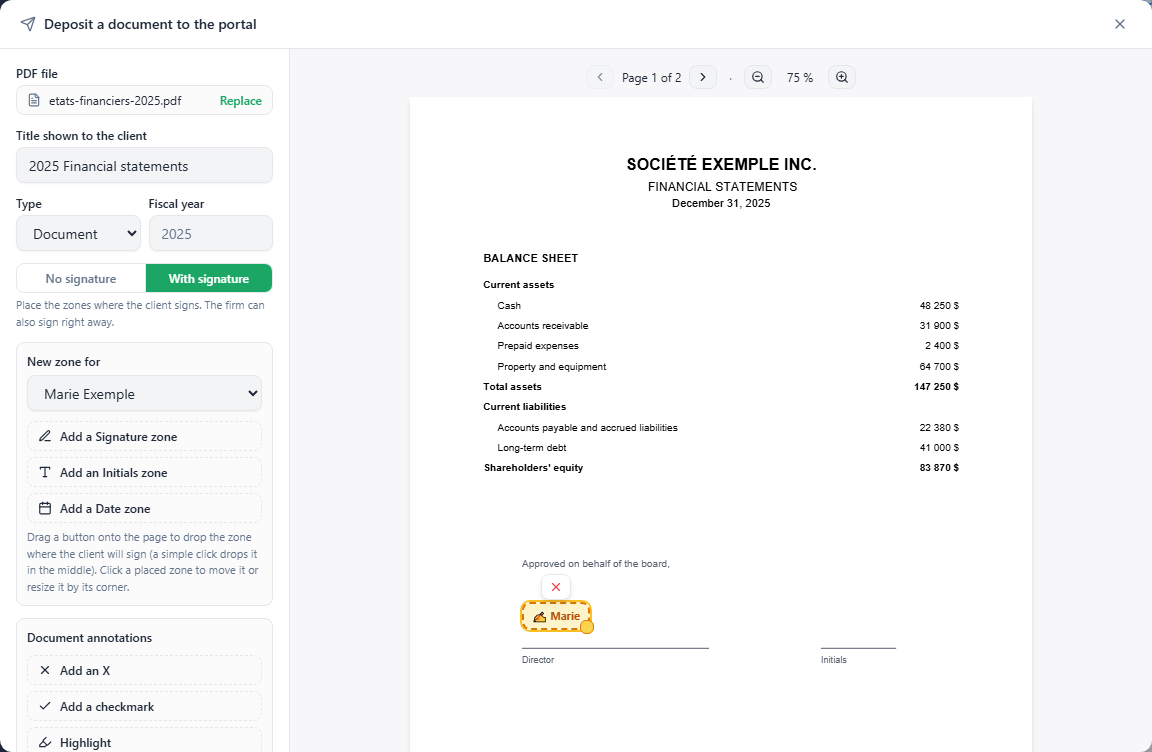
Marie Exemple's zone sits on the "Director" line. Each zone carries the first name of the person who must fill it.
The New zone for menu has two groups:
| Client (receives a request) | This client's portal users. Each gets their own request and only sees their own zones. |
|---|---|
| Firm (signs immediately) | Active members of your firm. Their signature (their name in handwriting style, with the date and time) is printed into the document when sending: no request is sent to them. |
Annotate if needed
Under Document annotations, Add an X, Add a checkmark and Highlight are dragged onto the page, like the zones, to guide your client ("check here", "sign in both places"). They are printed into the document. Click one to resize it or change its color.
Send
Click Send to portal. The button stays grayed out until a zone is placed. Since a signature is requested, your client is notified by email either way, and the document shows up in their To sign list.
If your PDF contains fillable form fields, they are frozen before the signature: nobody can change a value under a signature already applied.
Follow the signature
At the headquarters, the To sign tab gathers every client's documents waiting for a signature, oldest first, with the number of days waiting. On a client page, the Signatures section shows the same for that client only.
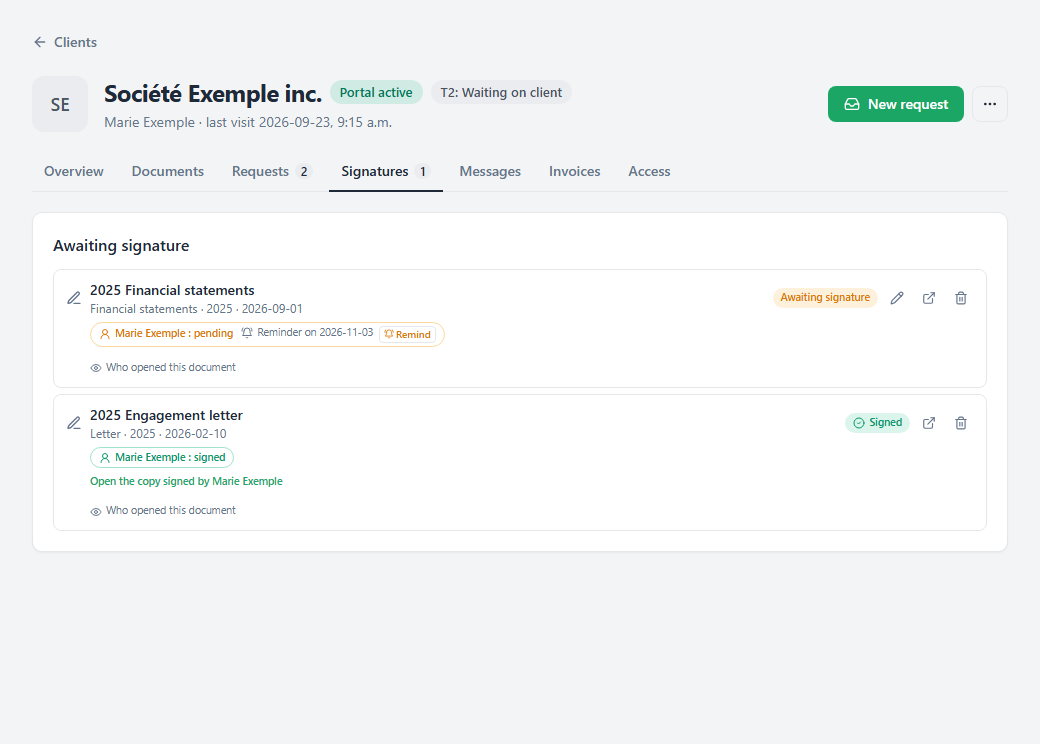
For each signer, a chip says "pending" or "signed".
- Remind, on a pending signer's chip, sends them an email reminder. Without you lifting a finger, they are also reminded automatically, following the portal's schedule; the chip shows the date of the next reminder.
- The pencil edits the request while not everything is signed: move, add or remove zones, then Save the changes.
- Once every signer has signed, the document turns Signed and your team gets an email notice.
The proof of signature
Each signature is drawn into the PDF with the date and time, and Ledger records the signer's date, time and IP address, with their consent. At the moment they sign, a sealed copy of the signed document is stored separately: the Open the copy signed by link, followed by the signer's name, opens it, and nobody, not even your firm, can change it.
If the working document changes afterwards, the page says so: "The working document has changed since. The signed copy has not." The signer also receives an email acknowledgment.
A signed document can be deleted like any other: it goes to the trash for 14 days, with its file and its signature, before being destroyed.
What your client does
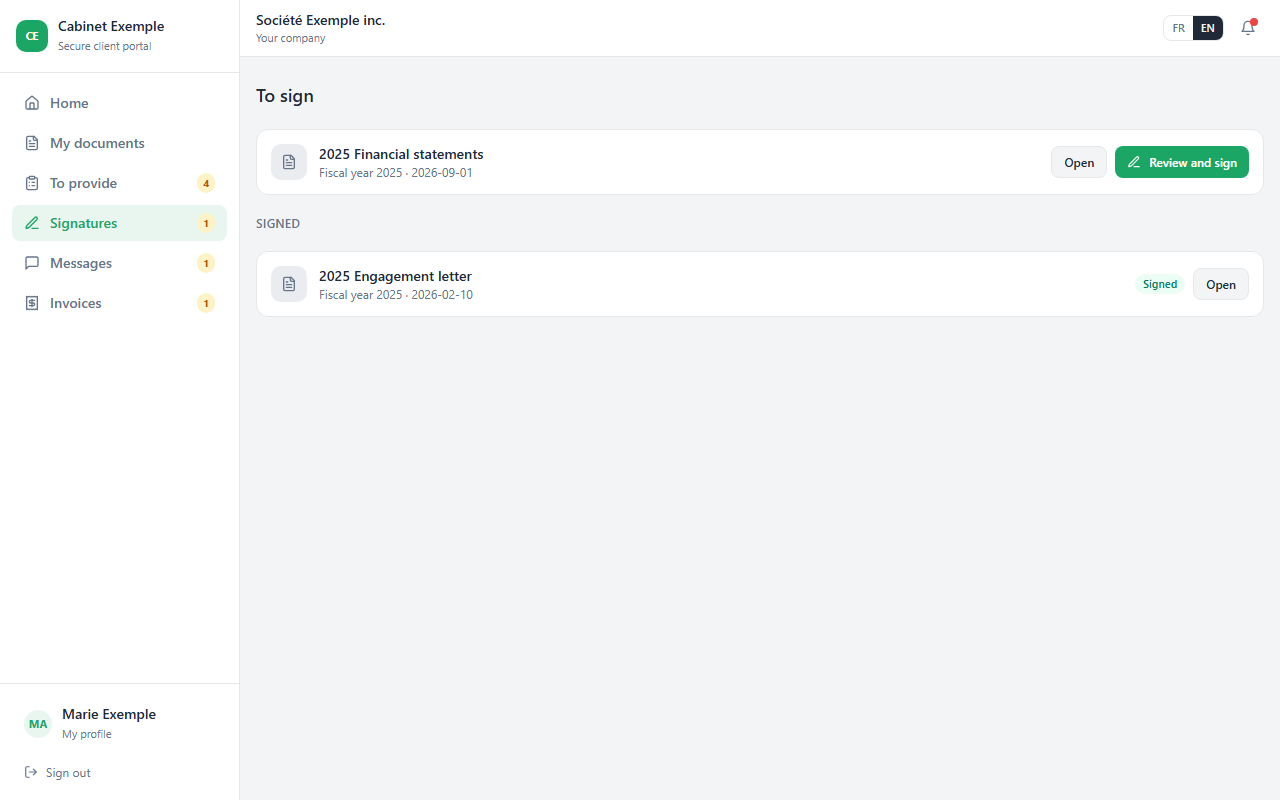
In their portal, Signatures page, your client clicks Review and sign.
They adopt their signature
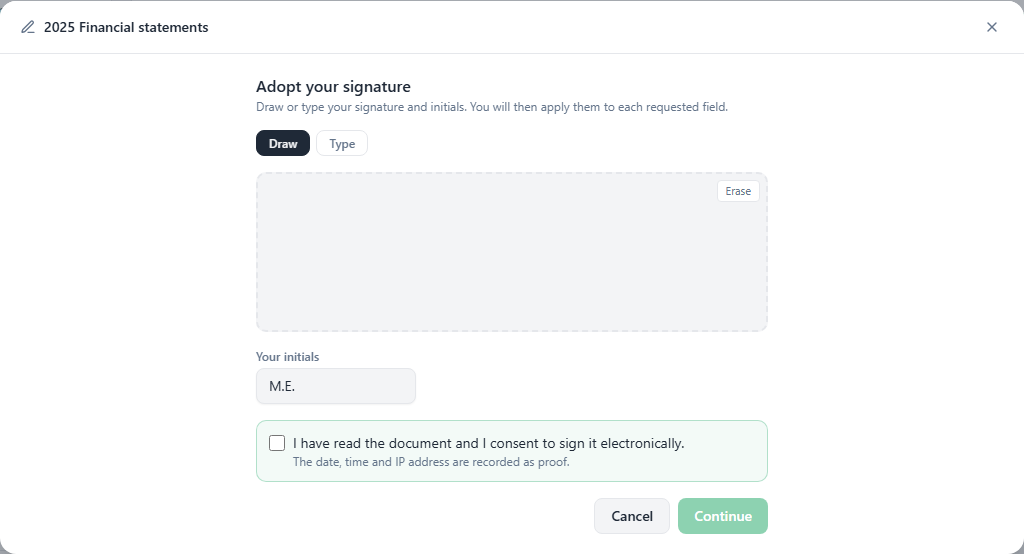
Draw with the mouse or a finger, or Type their name, then their initials. They check "I have read the document and I consent to sign it electronically." and click Continue.
They fill in their fields
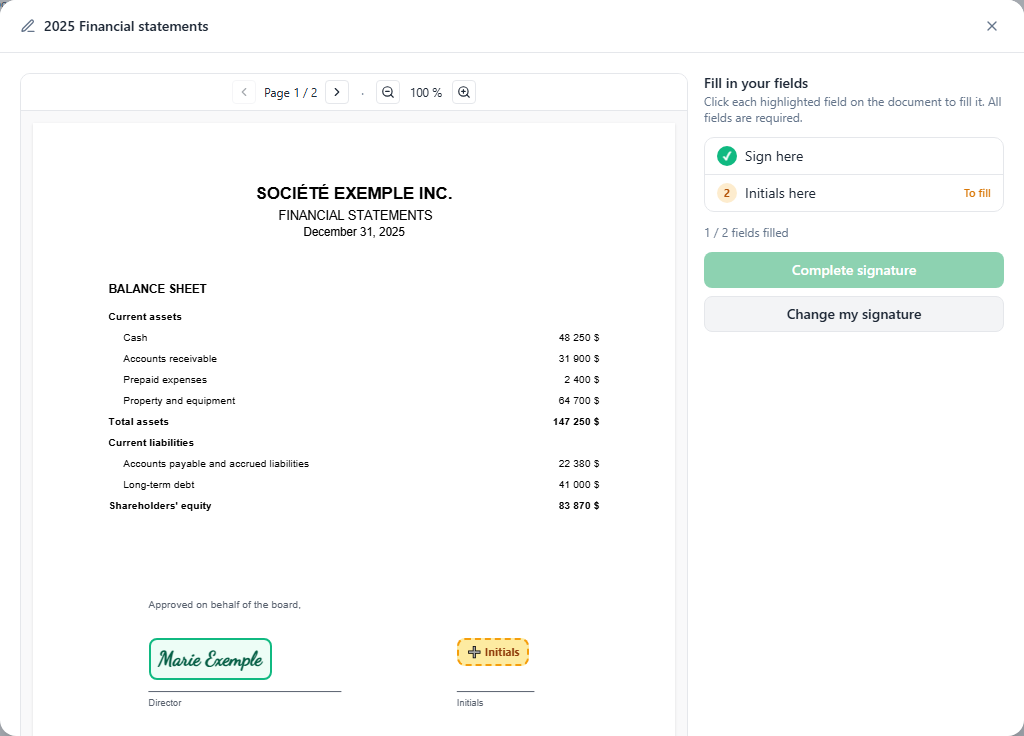
They click each highlighted field of the document to apply their signature, initials or the date. Every field is required; the counter ("1 / 2 fields filled") shows how far along they are.
They finish
Complete signature. The document is signed, your firm is notified, and a copy stays available in their documents.