Portal messaging
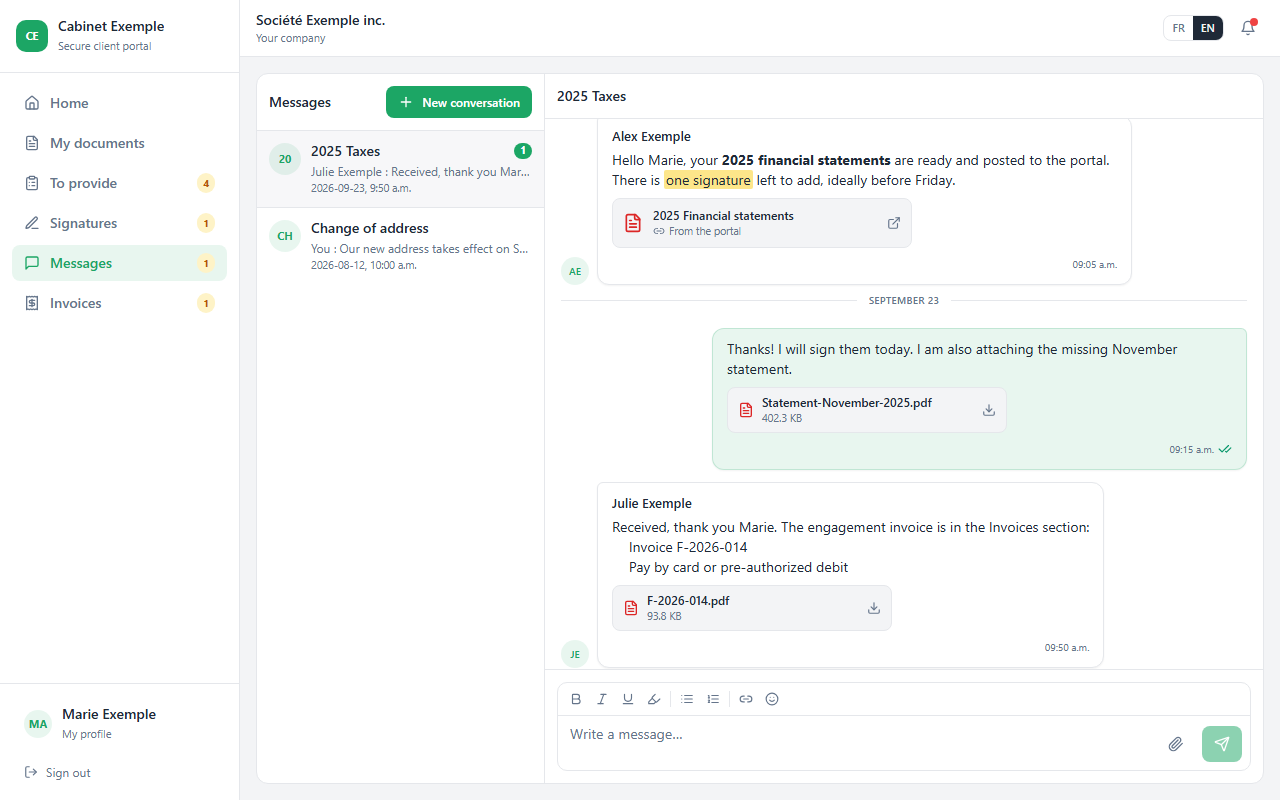
A direct, confidential channel with each client, organized by subject. Every message carries the name of the person who wrote it, on both sides, and you see when your client read it. Formatting, attachments, portal documents and internal comments included.
Two places, the same conversations
Exchanges are organized in threads, one per subject ("2025 Taxes", "Change of address"). You find them in two places:
- at the headquarters, Messages tab: the whole firm's inbox, across all clients, most recent threads first;
- on a client's portal page, Messages section: that client's threads only.
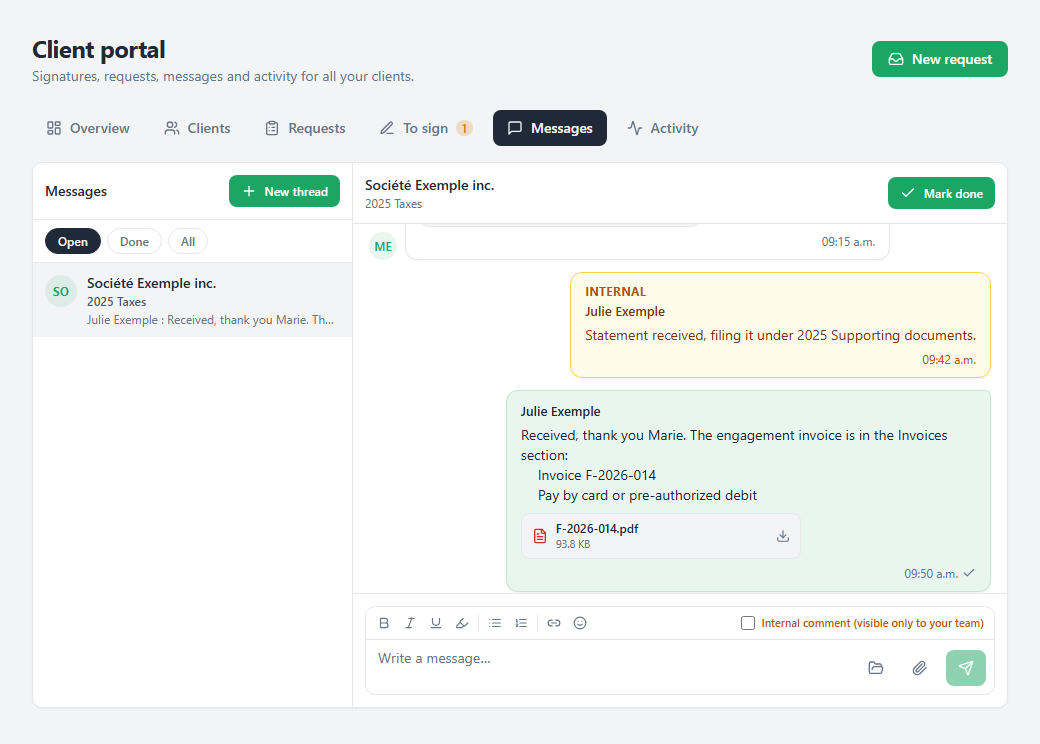
On the left, the threads and the Open, Done and All filters. On the right, the conversation and the composer.
To start a conversation, click New thread: pick the client by typing their name, give a Subject, write your message and click Create the thread. Your client can also open one on their side, with New conversation.
Read a conversation
- The author's name tops every message: yours, your colleague's or your client's. Your messages are on the right, the client's on the left with their initials.
- Read receipts follow the time of your messages: one gray checkmark means sent, two green checkmarks mean read by the client. Hover them to see when it was read.
- Messages are grouped by day and by author, and the conversation fills the full height of the screen.
When a subject is settled, click Mark done: the thread moves to the Done filter. Reopen brings it back.
Write: formatting
The composer works like a word processor: what you format shows right away, and the buttons light up based on where your cursor is.

A bold phrase and a highlighted sentence: the highlighter button is lit because the cursor is inside the highlighted passage.
| Bold, italic, underline | The buttons, or Ctrl+B, Ctrl+I, Ctrl+U. Clicking again removes the formatting. |
|---|---|
| Highlight | Turns a passage yellow. Click again on a highlighted passage to remove it. |
| Lists | Bulleted or numbered list. |
| Link | Opens the Insert a link window: the text shown and the address, then Insert. An address pasted into the message becomes clickable on its own. |
| Emoji | A palette of shortcuts. |
| Send | Enter sends; Shift+Enter starts a new line. |
Text pasted from Word or an email arrives as plain text, without stray styles.
Attach files
The composer's paperclip opens Attach files; you can also drag your files straight onto the composer. Accepted formats: PDF, images, Excel, Word, CSV or text, 25 MB per file, ten attachments at most per message.
Each attachment shows its state before sending (Uploading…, Checking…, then Ready). A failed attachment can be retried or removed. In the conversation, the attachment shows under the message with its name and size; a click downloads it.
Attach a document already on the portal
A document that is already on the client's portal (financial statements, a letter, a statement they uploaded) is not uploaded a second time: you link it to the message. Click the folder icon next to the paperclip, then pick the document in Attach a portal document. Search finds a title even when typed without accents.
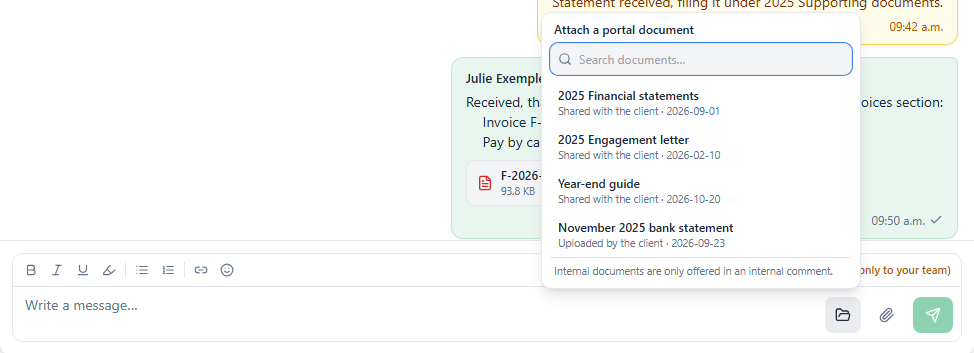
Each document shows its family and date. A document already attached to the message has a check mark.
- The document is added to the composer with the mention Portal document. Nothing is copied.
- Your client sees it under the message with the mention From the portal. A click opens it the same way as from My documents, and the view is recorded in Who opened this document.
- If the document is later moved to the trash or archived, the link shows Document removed from the portal and no longer opens. The same happens for your client if you move it to the Internal family.
- Internal documents are only offered in an internal comment: your client cannot receive a link to a document they do not see.
Internal comments
Check Internal comment (visible only to your team) before sending: the message shows in amber, tagged Internal, for your team only. Your client never sees it, nor its attachments, and no notice is sent to them.
An internal comment in the middle of the thread keeps the context in the right place: "Statement received, filing it under 2025 Supporting documents."
Email notices
- When you write, your client receives a notice in your firm's name. The notice does not contain the message: it invites them to read it on the portal.
- When your client writes, the accountant and partner responsible for the file are notified by email, and the message counts in Unread messages at the headquarters.
- If your client replies straight to the email notice, the reply goes to the person who wrote to them (otherwise, to the person responsible for the file).
What your client sees
On your client's side, the Messages page fills the whole screen: their conversations on the left, the open conversation on the right, with the name of each firm member who wrote to them and the same formatting and attachment tools.