Documents and document requests
Deposit a document for a client, receive their files, review and file them, and ask for what is missing with reminders that go out on their own. It all happens on the client's portal page, Documents and Requests sections.
Three families, one rule: the family decides who sees what
Open a client from the headquarters (Clients tab), then the Documents section. Documents are filed in three collapsible families, each with its number of folders and files:
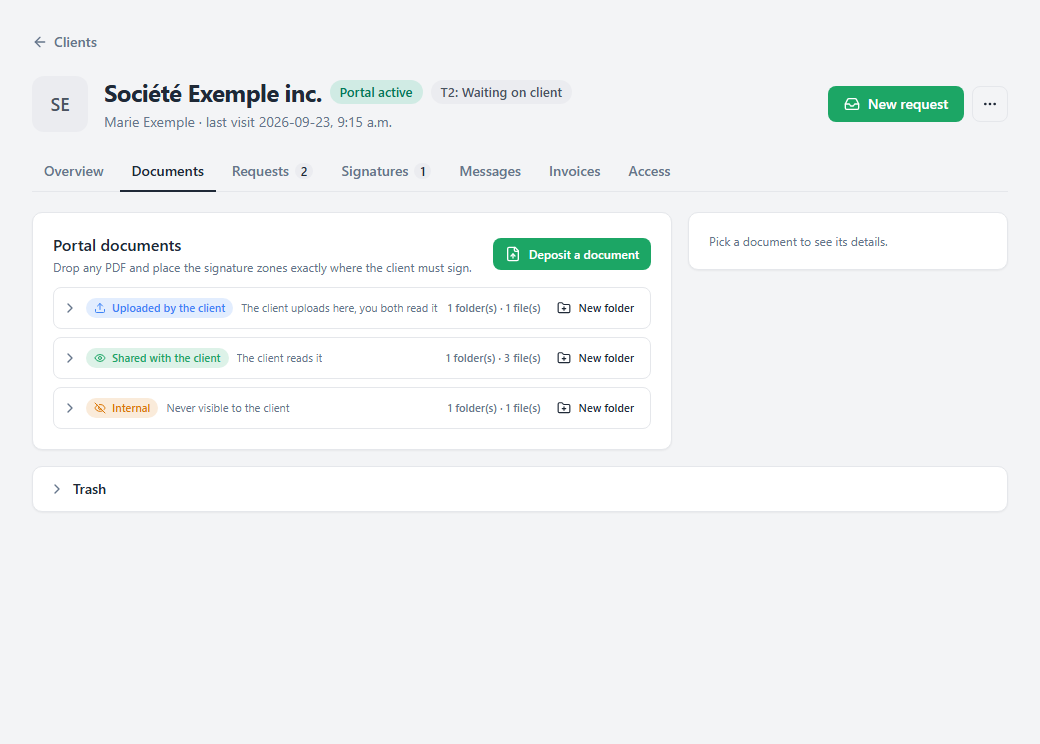
| Uploaded by the client | What your client sends you. They upload there, you both read it. |
|---|---|
| Shared with the client | What you send them: financial statements, letters, documents to sign. They read it. |
| Internal | Your work. Never visible to the client, who knows neither its name nor its existence. |
In each family, New folder adds a folder. A client opened without folders offers Apply the standard structure (the one from your settings). A folder can only be deleted when empty: empty it first.
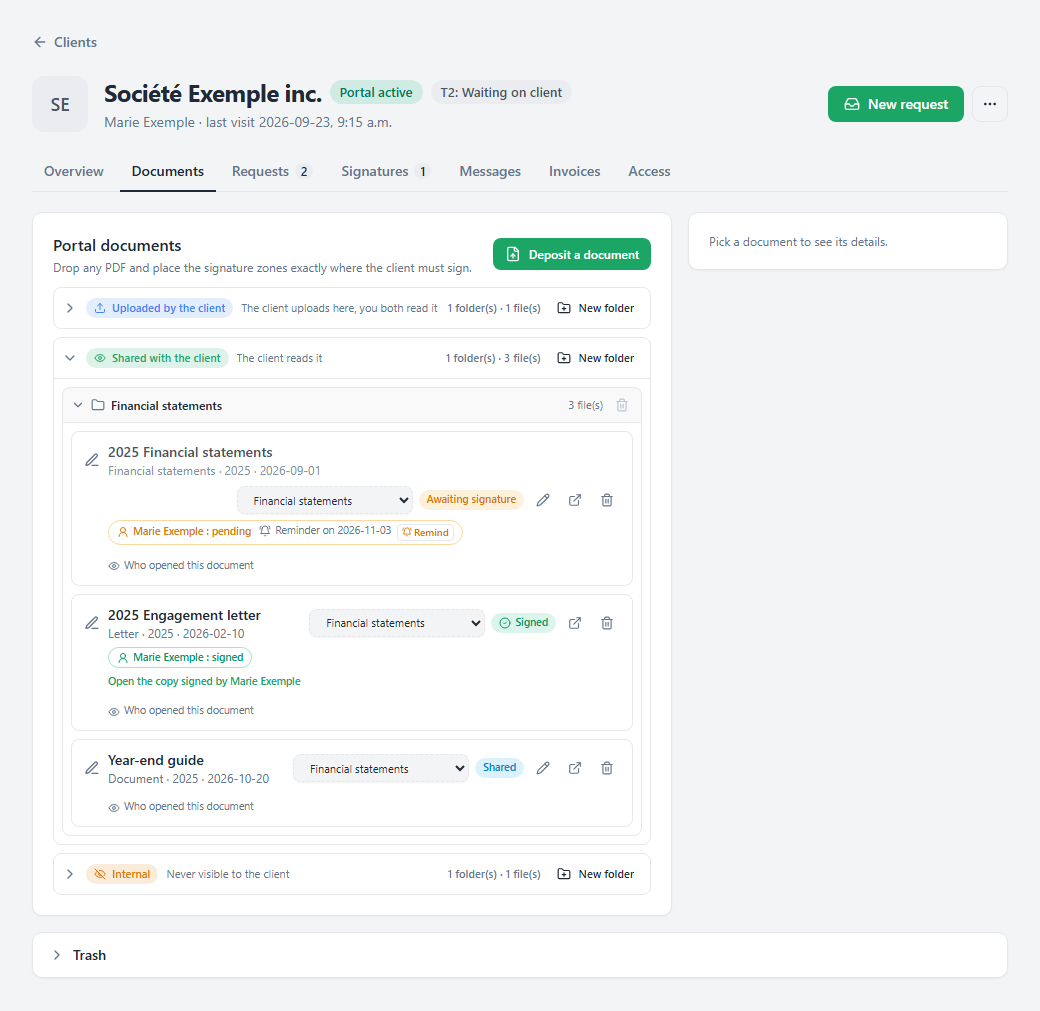
Each document shows its type, fiscal year, date and status, with the File under menu and its actions.
Deposit a document for a client
Open the deposit
Documents section, Deposit a document button. Pick the PDF file, then check the Title shown to the client (taken from the file name), the Type (Financial statements, Letter, Document) and the Fiscal year.
No signature or with signature
Choose No signature for plain sharing: the document reaches the client read-only. With signature shows the zones to place where they must sign: everything is explained in Get a document signed. The deposit remembers your last choice.
Notify, or not
The Notify the client by email box is checked by default. Uncheck it for a deposit that calls for nothing (a converted statement, a working copy). The notice only says there is something new, never the document title. When a signature is requested, the client is notified either way.
Send, then file
Click Send to portal. The document lands in the Shared with the client family, at the root. To file it, pick a folder in its File under menu. Several documents to file at once? Select all, then File the selection under….
Send financial statements
In the financial statements print preview, Send to portal opens this same deposit with the statements PDF already loaded, exactly as displayed: language, years presented, expanded sections, draft watermark if it is on. The Type (Financial statements) and the Fiscal year are filled in for you.
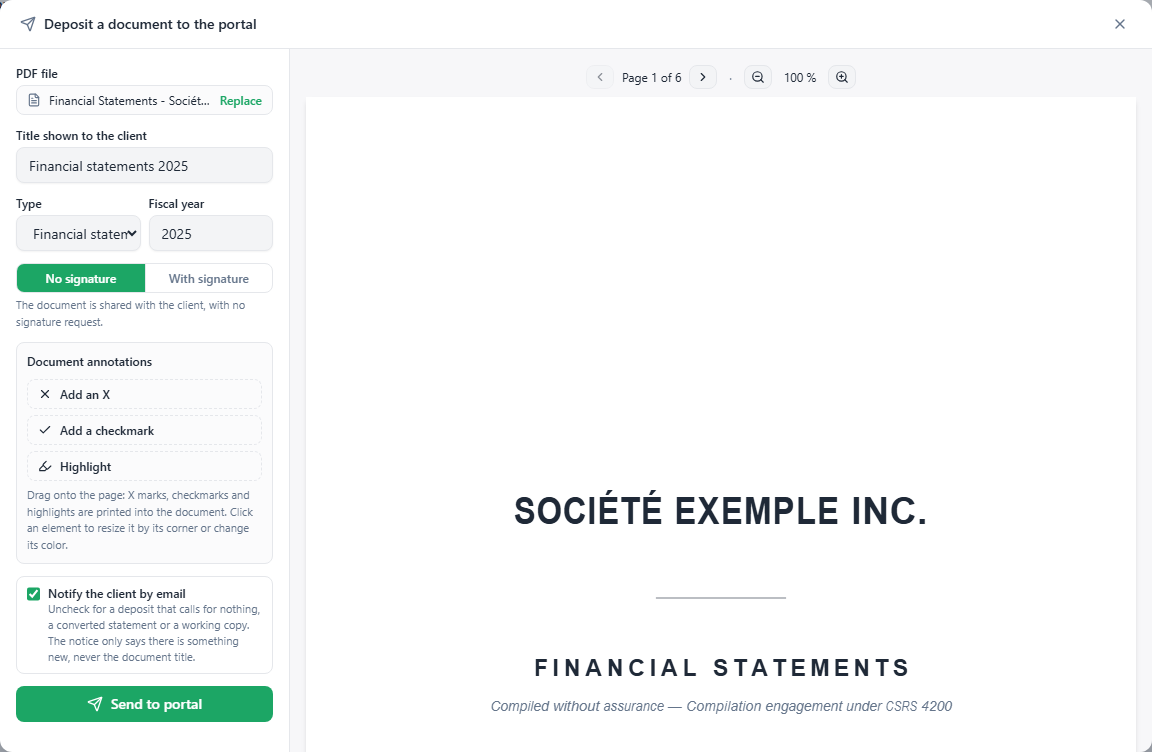
The statements PDF is ready as soon as the deposit opens: all that is left is to choose with or without a signature.
The statements go out with No signature by default. Choose With signature to have your client sign the balance sheet, or to print a firm member's signature on it. Replace deposits another PDF instead, for example a version printed separately.
Files received: review, replace, annotate
A file uploaded by your client lands in the Uploaded by the client family with the To review status. It counts in Items to review at the headquarters, and the accountant and partner responsible for the file get an email notice.
Click the document to open its detail panel:
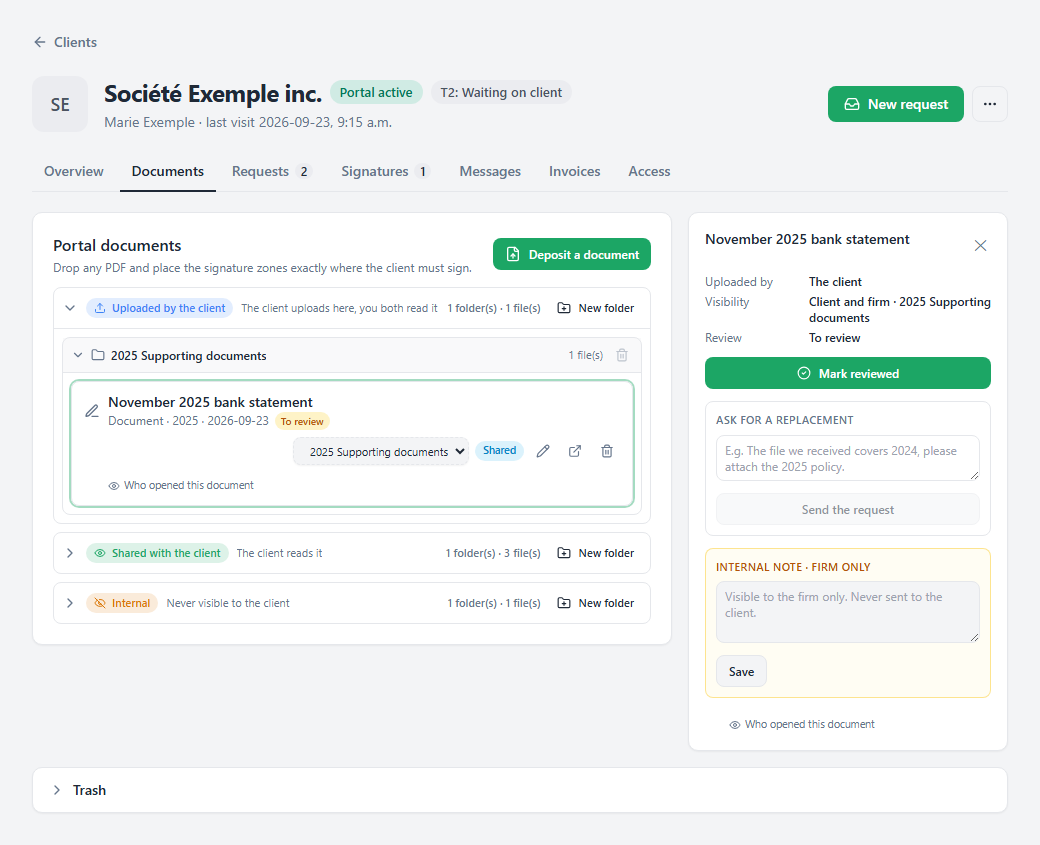
Uploaded by, Visibility and Review, then the three review actions.
- Mark reviewed: the file is good. It leaves the To handle queue and shows Reviewed on followed by the date.
- Ask for a replacement: write what is wrong ("The file we received covers 2024, please attach the 2025 policy") and click Send the request. Your client sees the file as To replace with your message.
- Internal note: visible to the firm only, never sent to the client.
Under each document, Who opened this document lists the views: who, and when.
Remove or delete a document
A document's trash icon offers two actions:
| Take it off the portal | The client no longer sees it. You keep it, and the history stays. |
|---|---|
| Delete it | The client stops seeing it. It goes to the Trash for 14 days, with its file and its signature, then it is destroyed for good. |
The Trash card, at the bottom of the section, shows the days left for each document and the Restore button.
Request documents
A document request shows up in the client's action list, with its due date, and closes on its own once the expected files are received.
For one client: Requests section
On the client's page, the Requests section gathers the client's document requests and questionnaires. Each document that belongs to a bundled request shows the name of its request. While the client has no request, Request documents places a single document; otherwise use New request, at the top of the page. The Apply a template menu places all the lines of a template at once.
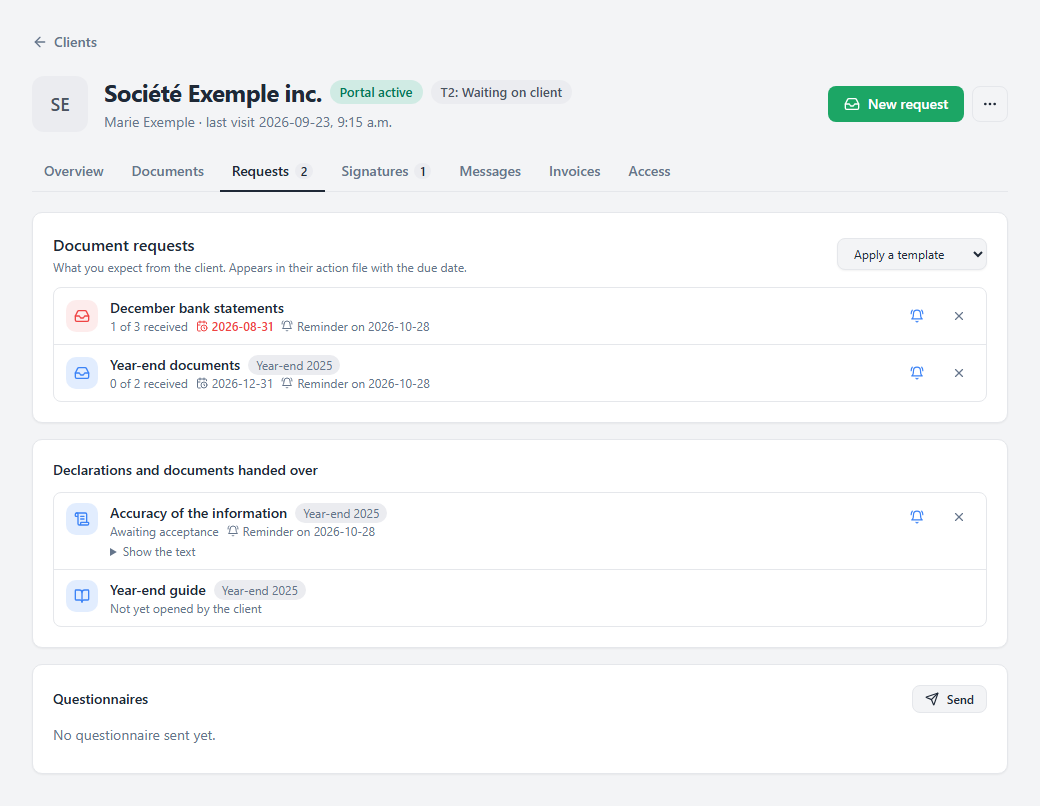
Each request shows its progress ("1 of 3 received"), its due date, in red once past, and the date of the next reminder.
On each line, the bell stops this request's reminders without cancelling it (Resume reminders turns them back on), and the ✕ cancels the request.
New request: a bundle, for one or several clients
The New request button, at the top of the headquarters or of a client's page (already addressed to them), opens the full-screen request editor. A request is a bundle: everything you need from the client, sent together and tracked together.
- Compose: check the clients under To whom (each one receives their own request), give a Title and Instructions to the client, then Add an item: a Document to upload (name, instructions, number of files, accepted types, optional or not), a Questionnaire (and its tax year), a Declaration to accept, or a Document to sign or to read already deposited for this client (one client at a time). Start from a template adds the content of one of your templates at once, or the documents of a Settings template. Click an item to adjust or remove it.
- Delivery: the Due date, the same for every item, with the 1 week, 2 weeks and 1 month shortcuts, then the Reminders: the Remind automatically until everything is provided switch and the timeline of planned dates, following your firm's schedule.
- Confirm: review the summary, then Send the request.
On the right, the Client preview shows live what the client will see: their request in the Portal, or the notice Email, which says how many and of what, never the content. Closing the editor midway asks for confirmation.
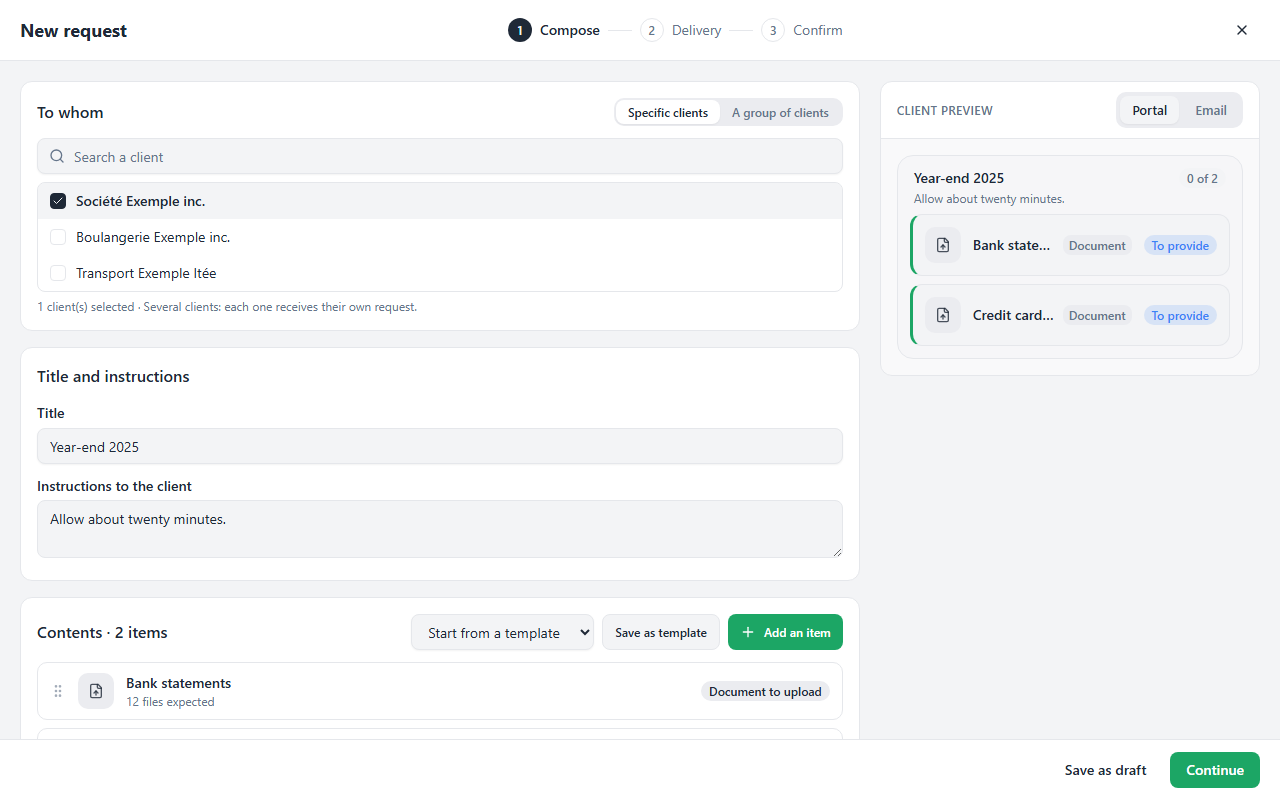
Composition on the left, the client preview on the right.
Save as draft, at the bottom of the editor, keeps the composition for later. Drafts are shared with the whole team: an empty request offers them at the top, with who edited them last, to Resume or delete them. Closing the editor only asks for confirmation when unsaved changes remain, and sending the request deletes its draft.
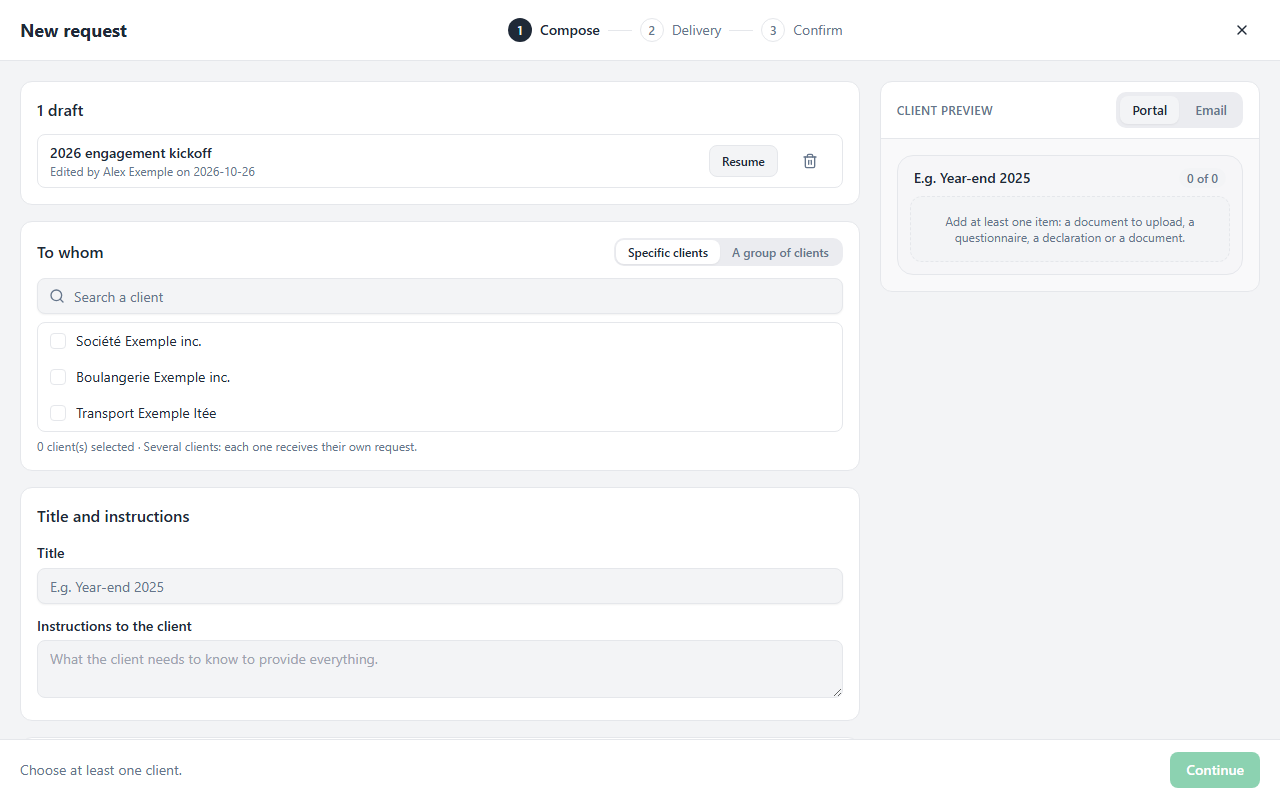
The firm's drafts, at the top of a new request.
The Ledger catalogue and your templates
Below the item types, the Add an item panel offers the Ledger catalogue: documents and declarations already written, in English and French, for Individuals, Corporations, Bookkeeping and Payroll. Search ("statement", "T4") or browse a category, then click an item: it arrives already set up (number of files, accepted types, optional) and can be edited like any other. It is written in the language of your interface.
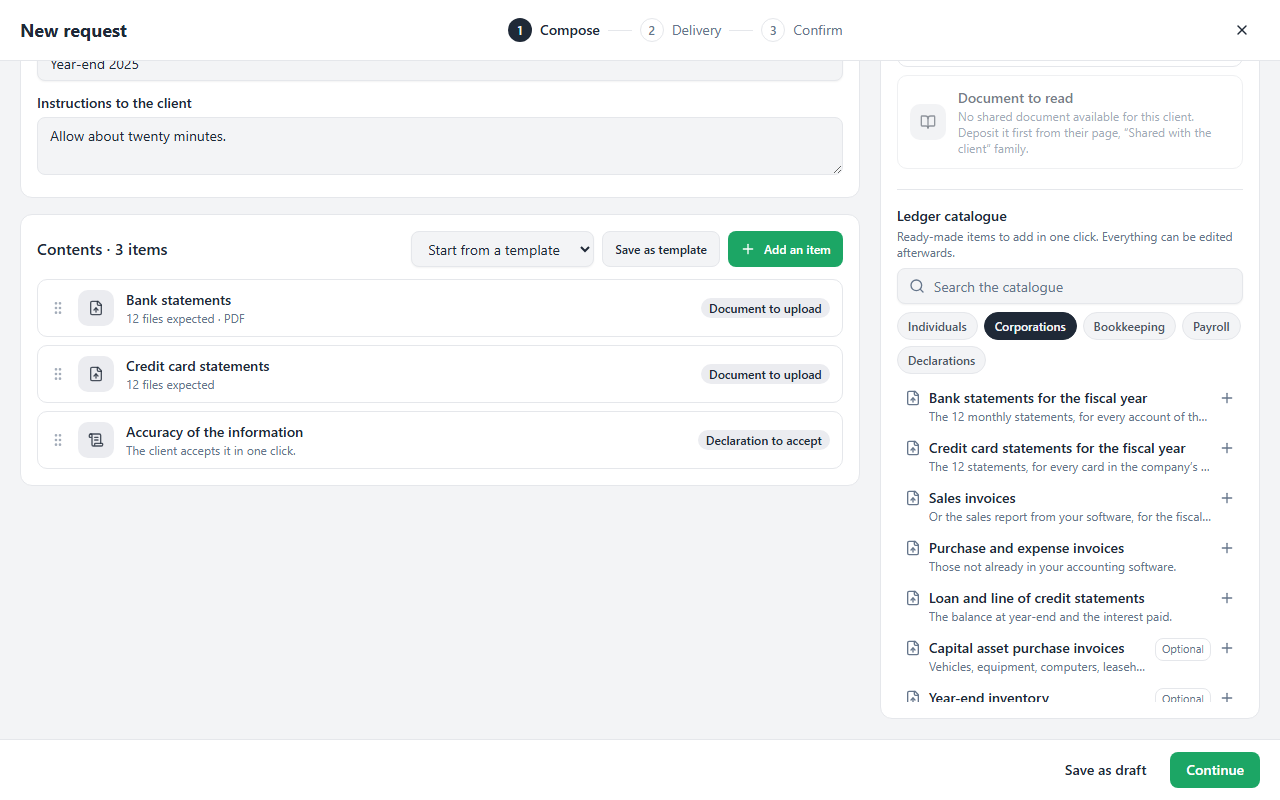
The catalogue, by category or by search.
Save as template, above the contents, keeps the request to reuse it: its title, instructions, items, reminders and due date, as days after sending. Never the clients, whom you pick each time, nor documents to sign or to read, which belong to one client. Your templates are shared with the whole team: they come first in Start from a template, and the Requests tab of the headquarters lists them under the Templates pill, to Use or delete them. Sending a request leaves the template untouched.
The Request templates of Settings, made of documents only, stay as they are: they are the ones pipeline stages send.
Scheduled and recurring requests
Under To whom, A group of clients targets a type, a tag or a responsible partner, together, with exceptions to uncheck.
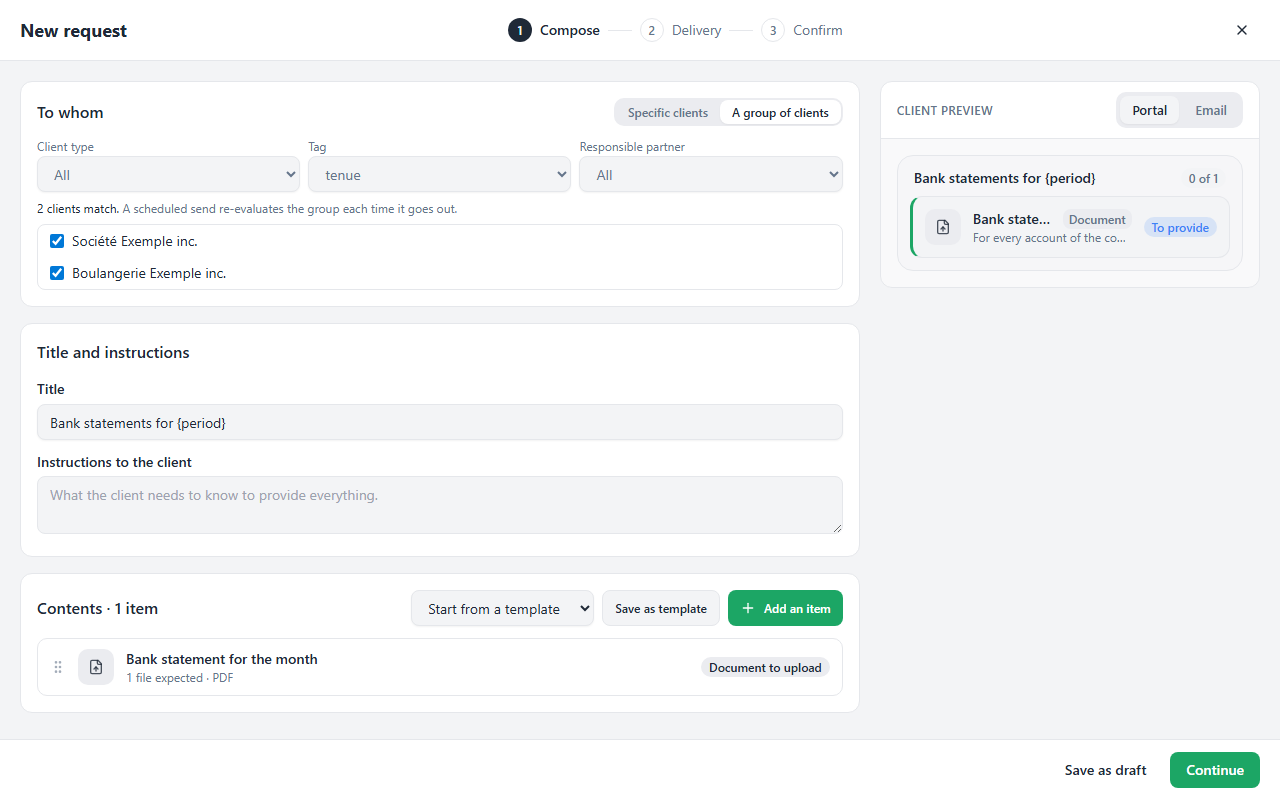
The clients tagged “tenue”, and an item from the catalogue.
At the Delivery step, Schedule sends the request later: choose the First send and the Frequency (Once, Every month, Every quarter or Every year). It goes out at 9 a.m., Eastern time; a send on the 31st goes out on the last day of shorter months. The due date counts in days after each send, and reminders follow the firm's schedule.
Write {period} in the title, the instructions or an item's text: each send puts the elapsed period there. Sent on November 5, “Bank statements for {period}” becomes “Bank statements for October 2026”; a quarterly send names the three elapsed months, a yearly send the previous year.
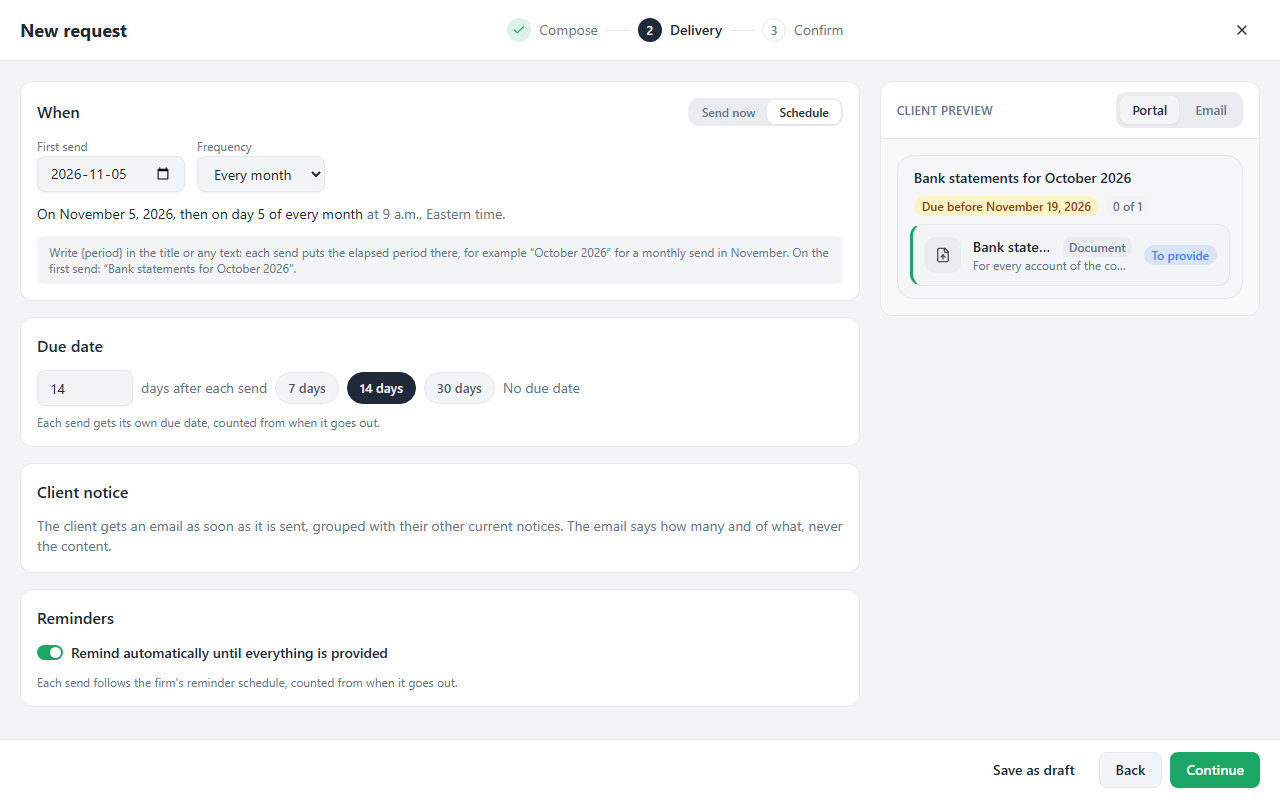
The first send, the frequency, and what the title will become.
When the day comes:
- a group is re-evaluated: a client tagged in the meantime gets the next send;
- a client without active portal access is skipped, and the result names them: invite them so they get the next send;
- the questionnaire covers the previous year, and does not go out again to a client who already received it for that year;
- a previous request not yet completed does not hold back the next one.
A scheduled request carries no document to sign or to read: those belong to one client. The Requests tab of the headquarters lists them under the Scheduled pill: Edit reopens the editor, the pause button Pauses or Resumes the send (resuming starts again from today, without catching up on missed dates), and the bin deletes it. Requests already sent stay as they are.
Optional document, declaration, document handed over
Click a document to adjust it: its Accepted types (PDF, images, spreadsheets, text files; none chosen means every portal format) and the Optional switch. The portal checks the actual content of every file: a "PDF" document refuses a spreadsheet renamed to .pdf. An optional document is never reminded, and the request is complete without it.
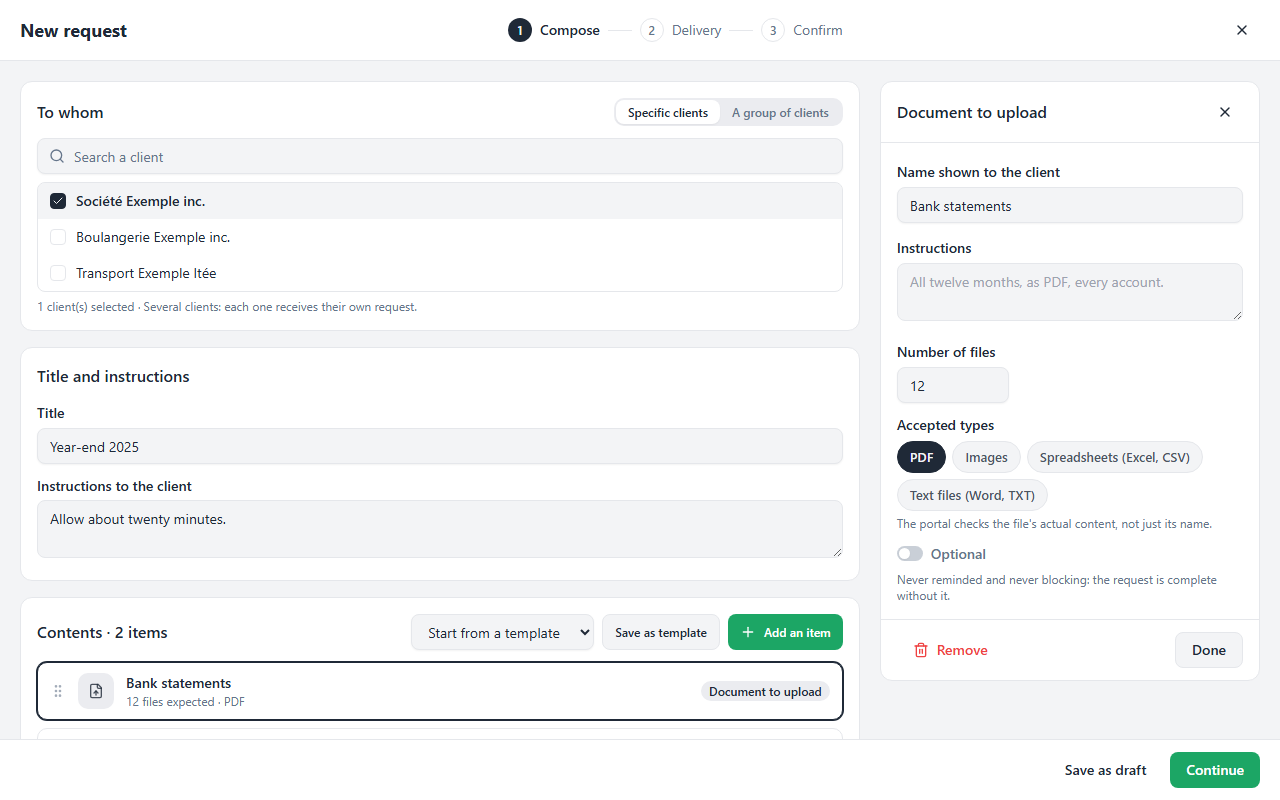
A document that only accepts PDFs.
A Declaration to accept is a text the client reads, then accepts in one click, for example "I certify that the information provided is complete and accurate". The text is frozen when sent. The acceptance keeps the date, the time, the client's name and email, and notifies you. It follows the reminder schedule, like a document.
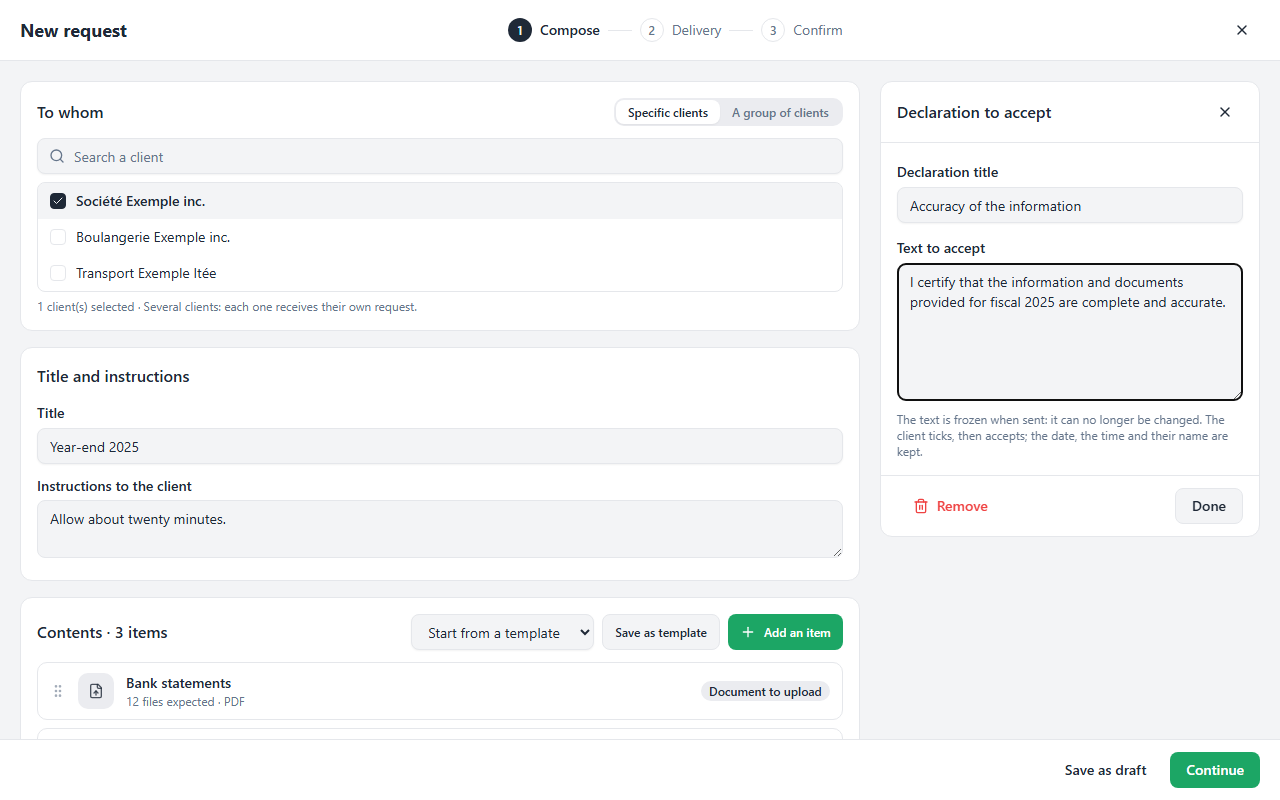
The declaration's title and text; the client preview updates on the right.
A Document to read is a document already shared with this client, for example a year-end guide. It is done as soon as the client opens it, according to the access log, and is never reminded.
On the client's page, Requests section, the Declarations and documents handed over card says who accepted and when, shows the accepted text, and tells whether each document was opened. A pending declaration can be withdrawn; once accepted, it no longer changes.
Scheduled reminders
Set once in Settings › Client portal › Scheduled reminders, they apply to every requested document, questionnaire sent and document to sign, with or without a due date:
- Reminder every: a reminder N days after sending, then every N days while the item is missing;
- Heads-up before the due date: for a dated request, a heads-up a few days before;
- Cap per request: the ceiling, so you never pester.
Reminders stop as soon as the item is provided, and a client upload pushes the next one back: no one gets reminded right after sending a file. They go out in the morning at 9 a.m. Eastern time; once the due date has passed, the email says "overdue". When an item has no reminder left, its line says why: Reminders stopped, Reminder cap reached or Completed.
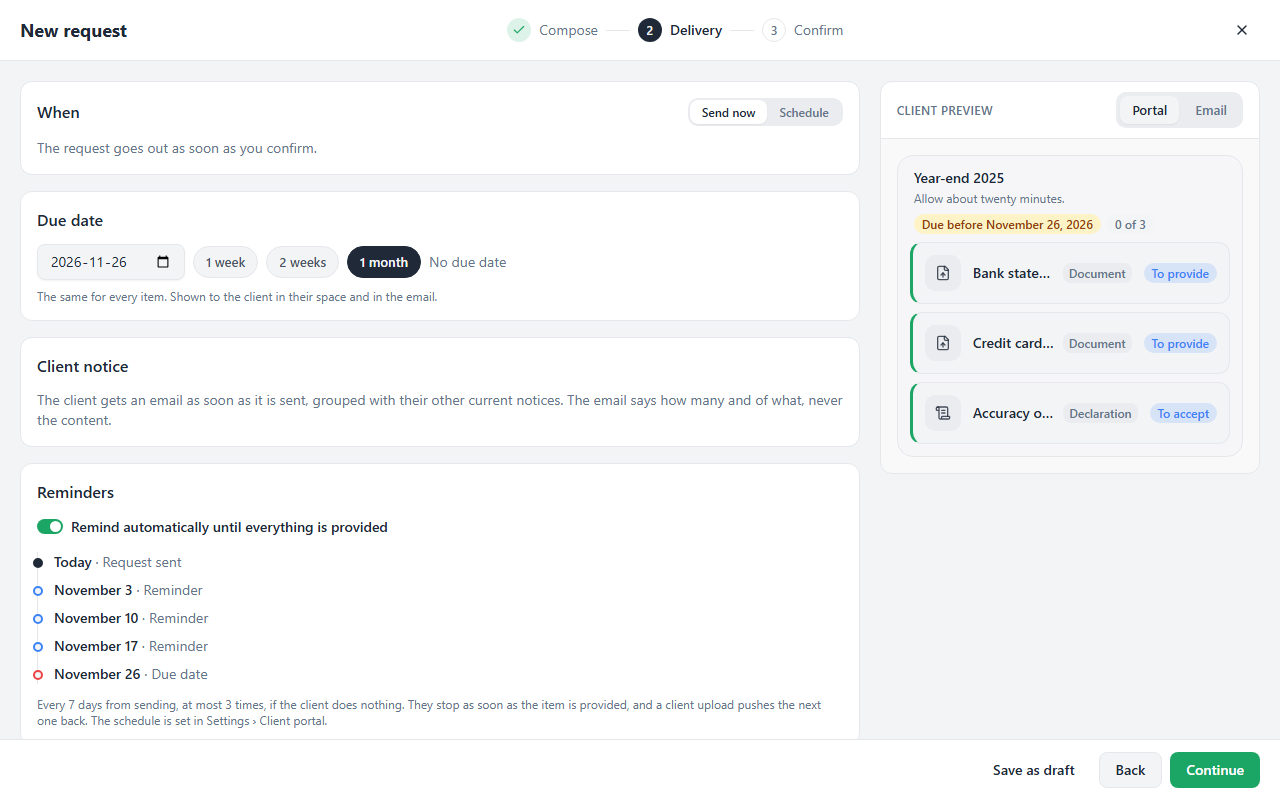
The Delivery step: the due date, then the reminders planned if the client does nothing.
A portal that reminds endlessly gets marked as spam, and that mark does not come off. The cap protects the delivery of all your emails.
What your client sees
On your client's side, the To provide page lists the requested items on the left. They pick one, then upload it on the right: drag and drop, paste (Ctrl+V) or, on a phone, Take a photo. Accepted formats: PDF, images, CSV, Excel (.xlsx) and Word (.docx), 25 MB per file. A document may accept only some of them; the page says so.
They do not need a request to send you a document: Other document, below the list, takes any file you did not ask for, and the page offers it right away when no request is open. The file lands in Uploaded by the client, to review, like a requested item.
In a request, a Declaration opens on the right: they tick "I have read this declaration and I accept it", then Accept. A Document handed over opens in one click and turns to "Read". An optional document carries the Optional label.
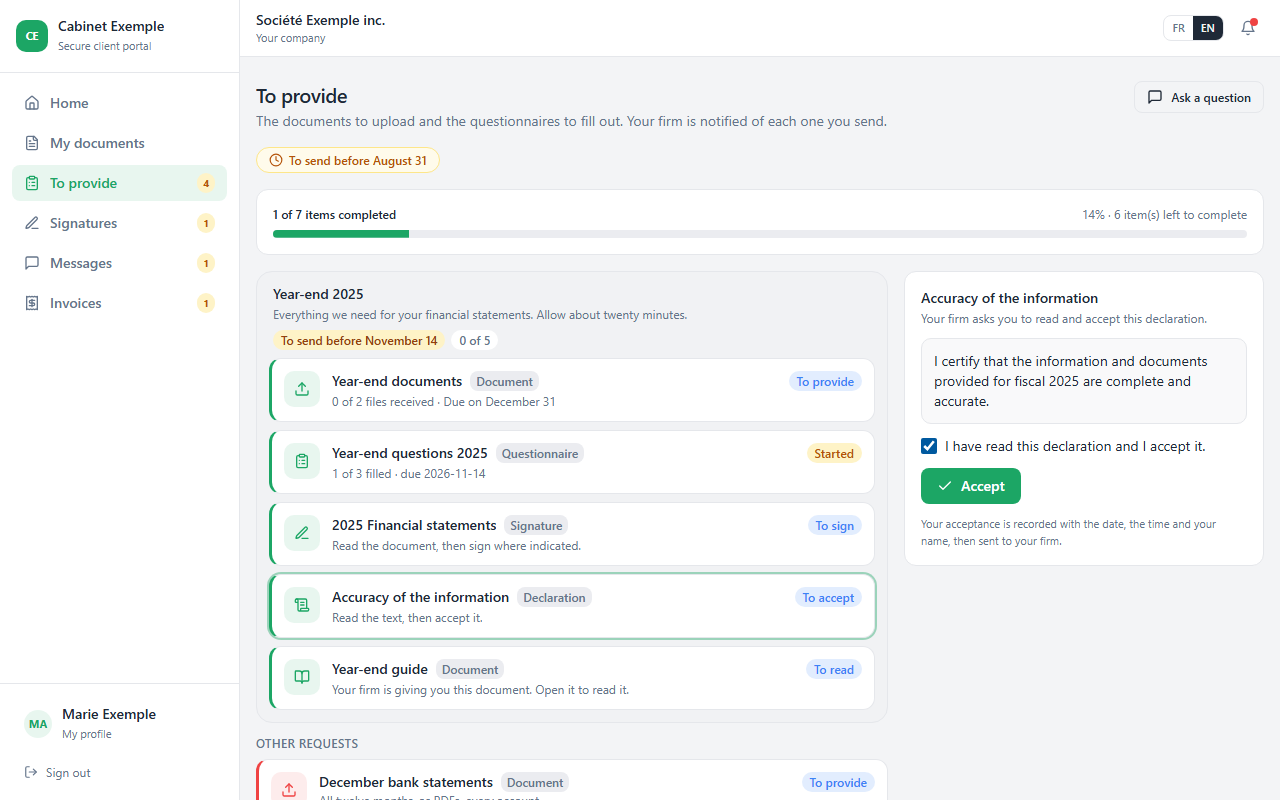
The frozen text, the checkbox, then Accept.
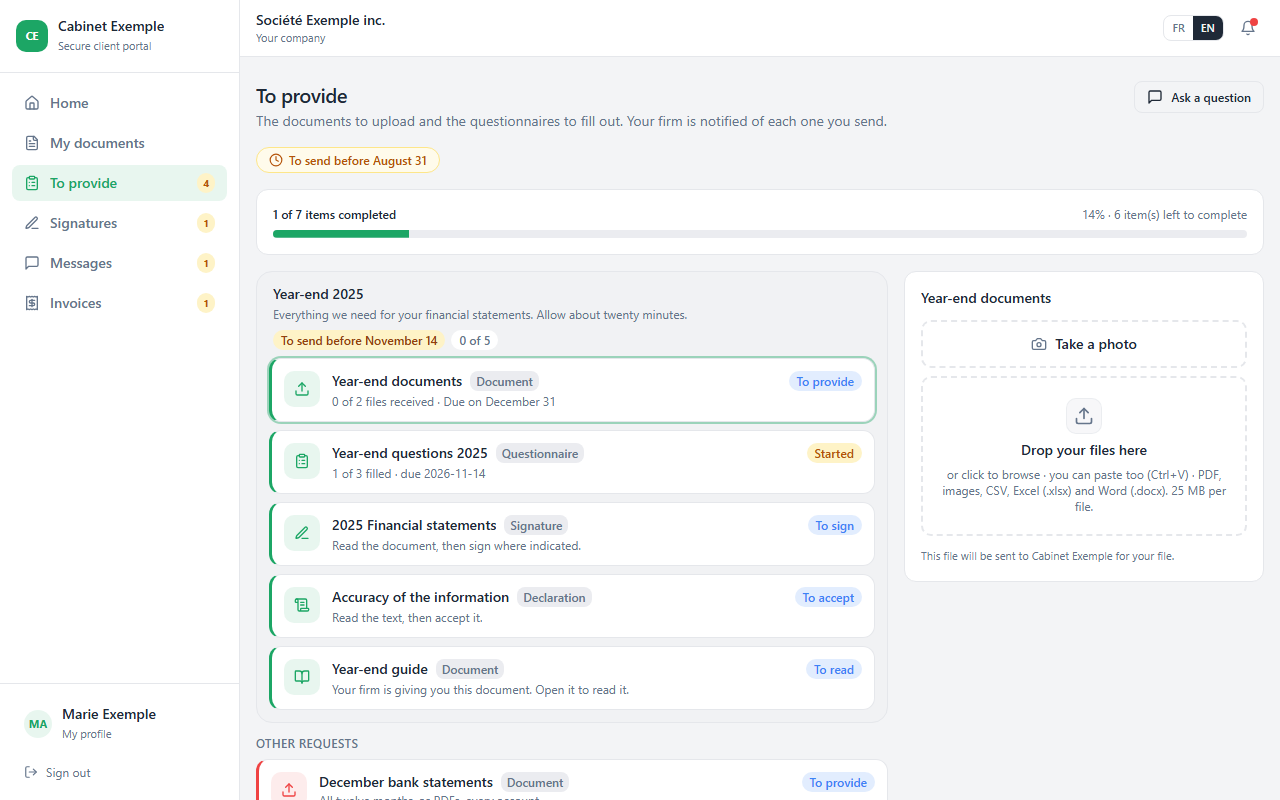
Your instructions show under Message from your firm, and the client can reply without leaving the page.